How to share a Reminders list on iPhone with your partner (and fix it when it won't sync)
How to share a Reminders list on iPhone with your partner or family: invite, assign, notifications, why shared lists stop syncing, and when a couples app fits better.
If you and your partner both have iPhones, the free option is already on your phone: Apple Reminders can share a list. For a lot of couples, it's enough. Here's how to set it up properly, how to assign who does what, what to check when a shared list stops updating, and the point where a dedicated shared household app makes more sense.
Steps below follow Apple's own guides (Share and assign reminders, Share lists and collaborate in Reminders). Button names can shift slightly between iOS versions.
Before you start: what both of you need
- Both signed in to an Apple Account on your iPhones.
- Reminders turned on in iCloud — Settings > [your name] > iCloud > See All (or Show All) > Reminders.
- The list lives in iCloud, not in another account (Gmail, Exchange). Lists in the "iCloud" section of the Reminders app can be shared; others usually can't.
- Updated reminders. Apple notes that collaboration features need iCloud's updated reminders. If Reminders ever asked you to "upgrade," do it on both phones.
How to share a Reminders list on iPhone (step by step)
- Open Reminders and tap the list you want to share — or create one with Add List (call it something you'll both recognise, like "Home" or "Groceries").
- Tap the Share button at the top of the list.
- Optional: by default, people on the list can invite others. To keep it just the two of you, tap the sharing option and turn off Allow others to invite.
- Choose how to send the invite — Messages is easiest — and pick your partner.
- Your partner taps the link and accepts. Until they accept, they won't see anything.
Once accepted, either of you can add items, edit them, and tick them off, and you both see each other's changes. If you sent the invite in Messages, you'll also get activity updates in that conversation when the list changes.
How to assign a reminder to your partner
A shared list tells you what needs doing. Assigning tells you who. In a shared list:
- Create or edit a reminder and type @ followed by your partner's name, or
- Tap the reminder, tap the assignment (person) button in the toolbar above the keyboard, and choose them.
You can assign to yourself too. To reassign, tap the assignee next to the reminder and choose Reassign or Remove Assignment. Everything assigned to you shows up in the Assigned to Me smart list.
One honest tip from the chore-splitting side of things: assign whole tasks, not fragments. "Book the boiler service" is ownable. "Remind me to remind you about the boiler" isn't.
Turn shared-list notifications on (or off)
In the shared list, tap the collaborate/share button > Manage Shared List, then under Notify When choose:
- Adding Items — get an alert when your partner adds something.
- Completing Items — get an alert when something gets ticked off.
Worth knowing: date and time alerts you set on your own reminders aren't shared with other people. If you want your partner to get a nudge, assign it to them and give it a date.
Shared Reminders list not syncing? Check these first
This is the most common complaint once couples actually use a shared list. Work through it in order:
- iCloud Reminders is on — on both phones. Settings > [your name] > iCloud > Reminders. If it's off on one side, nothing moves.
- The invite was actually accepted. If your partner never tapped through, they're looking at nothing. Send it again from Manage Shared List.
- Same, current iOS. Shared features need recent versions on both devices. Update both phones if one is lagging.
- The list is in iCloud. A list stored under a Gmail or work account won't behave like a shared iCloud list. Create a fresh list under iCloud and move items into it.
- Connection and Low Power Mode. Syncing needs a connection; Low Power Mode can delay background updates. Open the app, pull to refresh, and give it a minute.
- Sign out and back in to iCloud as a last resort — after checking you won't lose anything stored only on that device.
If it still won't sync after all that, Apple Support is the right next step. We can't fix Reminders from here.
Where shared Reminders works well — and where it gets thin
It works well if:
- You're both on iPhone and want something free that's already installed.
- The list is mostly groceries or a short set of jobs.
- One of you is happy to be the person who keeps it tidy.
It gets thin when:
- Groceries, chores and plans live in separate lists, and one person ends up checking all of them.
- Old items sit there forever. A reminder that's been ignored for three weeks looks exactly like one added this morning, so the person who notices still does the nagging.
- The list becomes one person's job. Sharing a list doesn't share the mental load if only one of you adds to it, assigns from it, and checks it.
- Someone in the house isn't on iPhone. Sharing needs an Apple Account and iCloud.
None of these are bugs. Reminders is a personal to-do app that can share. A household often needs something built for two people from the start.
Where Carry fits
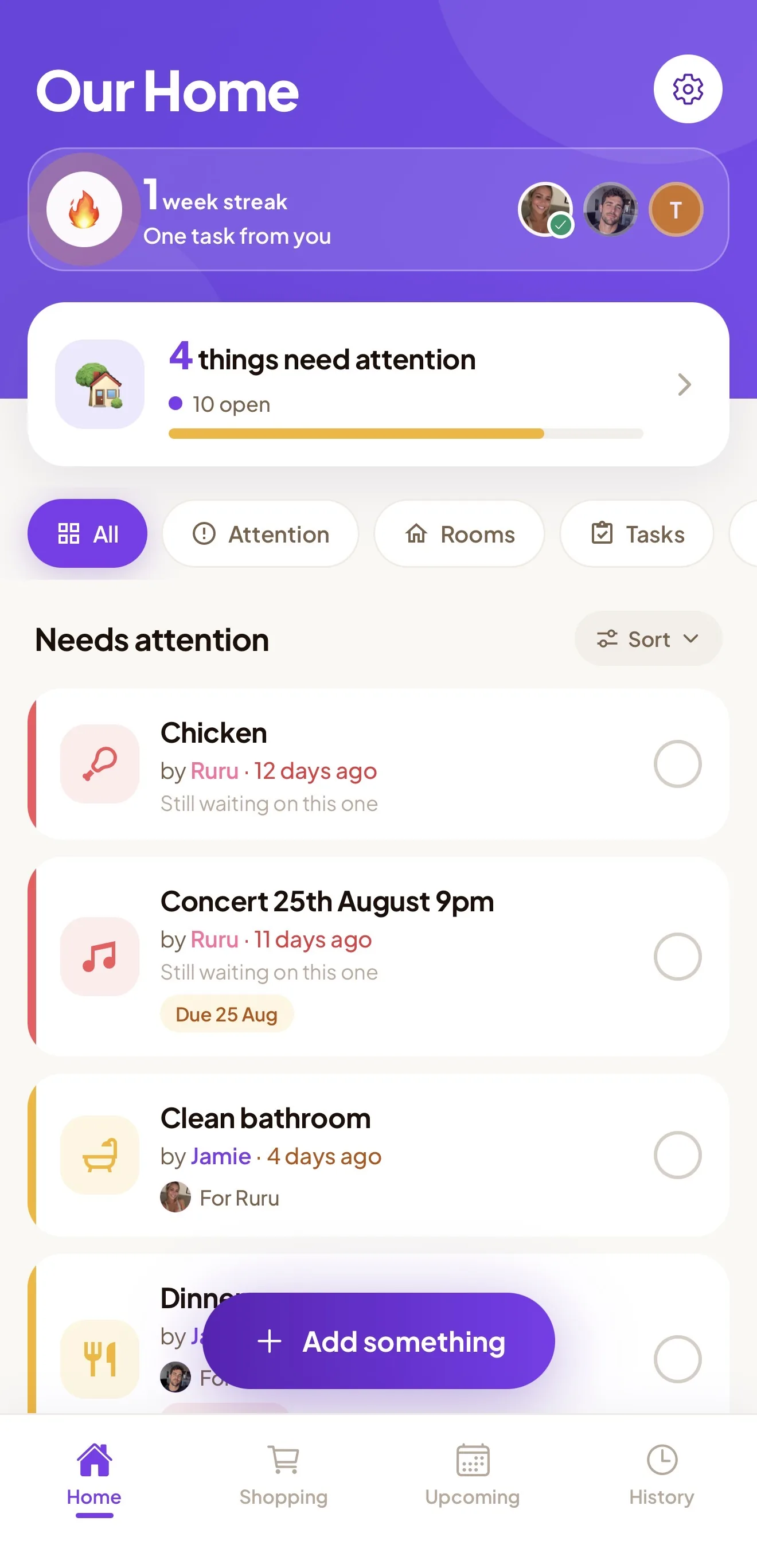
Carry is a shared to-do list for couples: one home feed for tasks, shopping and plans, so you're not juggling three shared lists. Shopping groups by aisle. Voice capture is there for when you remember something mid-errand. Items visibly age the longer they sit, so the stale ones surface on their own instead of through a nag. It's built so the remembering is shared, not just the list.
If you're weighing the two directly, we wrote a straight Carry vs Apple Reminders comparison. You can download Carry on the App Store — free to download, with a 7-day free trial on Plus.
Not sure whether the list is the problem or the load behind it? The Mental Load Score is a few quick questions (not a clinical test) to see how the remembering is split right now.
Either way: share the list, assign whole tasks, turn on notifications, and check sync on both phones. The tool matters less than both of you actually opening it.